
LLMAI Terminal Demo
Used In:
• LLMAI_Arcade — AI controls the Rocketeer game through function calling
• LLMAI_LiveLink — AI controls a MetaHuman character with lip-sync and gestures
Perfect for: Understanding AI integration, testing voice features, learning LLM capabilities, developing cutting edge LLM functionality in Unreal Engine.
LLMAI Terminal Interface Overview
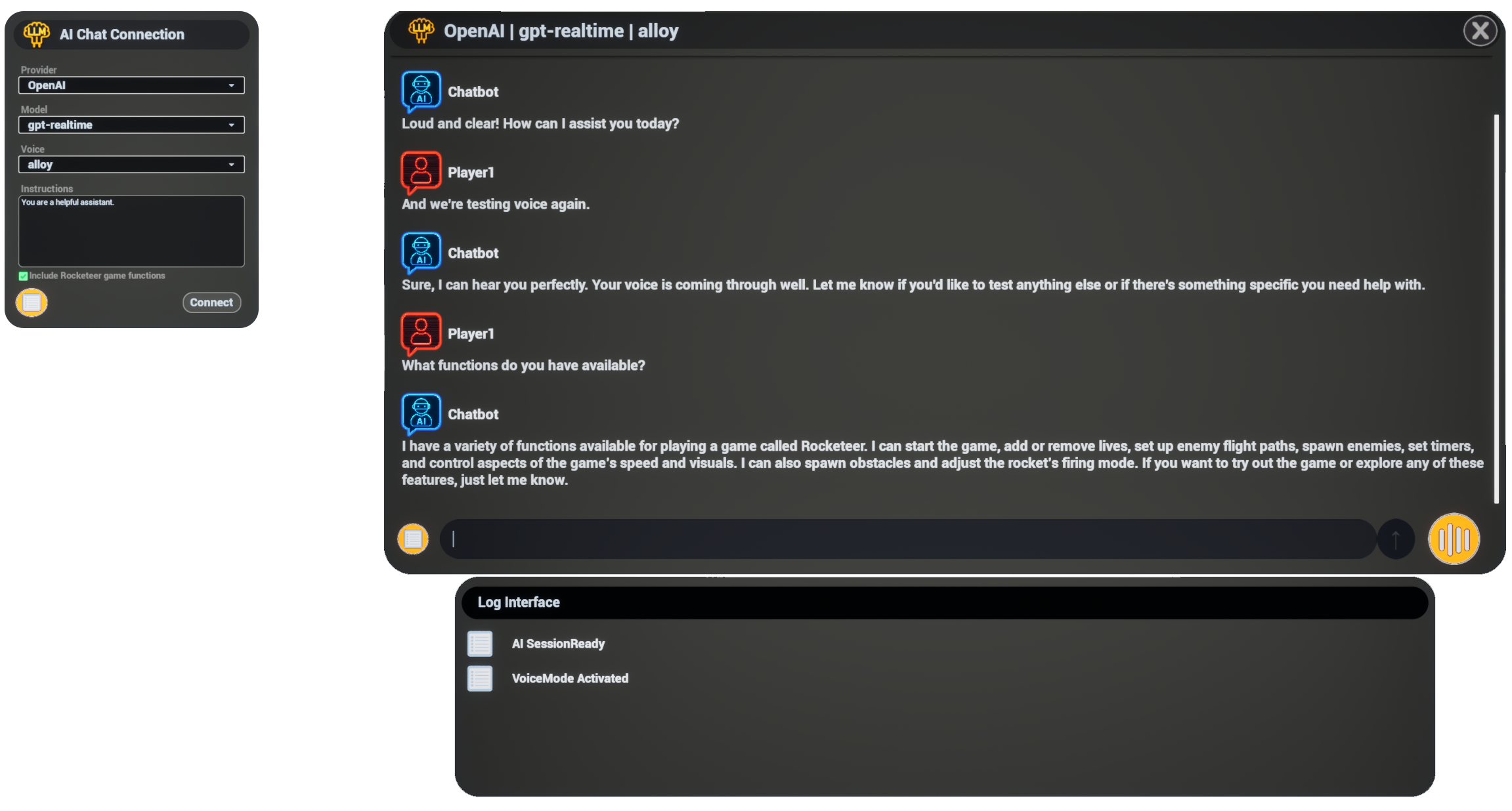
🎯 Terminal Features Overview
🚀 Getting Started
✨ Core Features
🖥️ Interface Guide
🎮 How to Use
🛠 Technical Info
🚀 Getting Started
Prerequisites
Before trying this demo, you need to enable the LLMAI plugin
Required Setup: The plugin must be installed and configured first. See the Plugin Installation Guide for:
- Installing the LLMAI plugin
- Enabling it in your project
- Configuring AI service (OpenAI API key OR LocalAI)
- Setting configuration options
Note: You can use either OpenAI (cloud) or the LocalAI distribution (available separately) for offline operation.
Launch the Demo
- Open the Level: Navigate to
Content/LLMAITerminal/Levels/LVL_LLMAITerminal.umap - Play the Level: Click Play in Editor or use Alt+P
- Connect to AI: The connection dialog will appear automatically
Configure Your Experience
- Choose AI Model: Select from available models
- Select Voice: Pick an AI voice personality
- Set Instructions: Customize AI behavior or use the helpful defaults
- Click Connect: Wait for the "AI Session Ready" confirmation
✨ Features Showcase
💬 Text Communication
Real-time Responses: See AI responses stream in real-time character by character
Message History: Scrollable conversation history with timestamps
System Messages: Clear status updates and connection information
🎤 Voice Communication
Voice Activity Detection: Automatic speech detection - just start talking!
Natural Conversations: Experience low-latency voice interactions
Visual Feedback: See when you're speaking and when AI is responding
🔧 System Integration
Debug Interface: Toggle the log panel to see detailed system information
Error Handling: Graceful error messages and automatic recovery
Performance Monitoring: Real-time connection and response metrics
🖥️ Interface Guide
Connection Dialog
The connection dialog is used to connect to your selected AI provider and configure your session:
Configuration Options
- Provider: Select from available providers:
- OpenAI — Cloud-based AI using OpenAI's Realtime API (requires API key)
- LocalAI — Local/offline AI processing (available separately, no API key required)
- Model Selection: Use the model drop-down list to select from available OpenAI models
- Voice Selection: Choose your desired voice from the Voice drop-down list
- AI Instructions: Enter instructions to customize the AI's personality, approach, and even accent
Example: "You speak in a very broad Australian accent"
- Rocketeer Game Functions: or LiveLink Integration Functions: Use the checkbox to include game integration functions
- Rocketeer Game Functions: This will allow the AI to control the Rocketeer game through function calling.
- LiveLink Integration Functions: This will allow the AI to control the MetaHuman character through function calling.
- Log Interface: Toggle the log display using the Log Interface toggle button at bottom-left
Connecting: Once you've selected your desired options, click the Connect button. When the connection is established, it will automatically show the chat interface.
Chat Interface Overview
The main chat interface provides all the tools you need for AI communication:
Interface Components
- Chat Messages History: Displays all messages between "Player1" and "Chatbot" with full conversation context
- Text Input Field: Enter your text message at the bottom of the chat interface
- Press Enter or click the Send button to send your message
- Messages appear in real-time with streaming responses
- Voice Mode Toggle: Turn voice communication on and off at any time
- Enables microphone input and voice output through default speakers
- Provides natural voice conversation capabilities
- Log Toggle: Access the Log Interface toggle button at bottom-left (also available during conversation)
- Close Button: Located at top-right to disconnect from chat and automatically end voice mode
🎮 How to Use
Text Chat
- Type your message in the input field at the bottom
- Press Enter or click the Send button
- Watch the response - The response is streamed in real-time from the AI to the chat area
- Continue the conversation naturally back and forth with historical context maintained
Voice Mode
- Click the Voice Mode button to enable voice mode
- Start speaking and your voice will be streamed to the AI
- AI will respond with streaming text and voice output in real-time
- Continue talking - you can naturally interrupt the AI at any time
- Click the Voice Mode button again to return to text-only mode
Log Interface
Log Toggle: Toggle the in-game log to show LLMAI and terminal events
Demo-Specific Features
The Terminal interface is used by both demo projects, each with different AI capabilities:
LLMAI_Arcade Demo
Say "Launch Rocketeer" and the AI will use a function call to start the arcade game.
Refer to the Rocketeer Game Documentation for detailed information.
LLMAI_LiveLink Demo
Enable voice mode to see real-time lip-sync on the MetaHuman character. Try commands like "Wave hello", "Move to the left", or "Jump!"
Refer to the LiveLink Demo Details for gesture and movement functions.
💡 What to Try
Basic Conversations
- "Hello, how are you today?" - Start with simple greetings
- "What can you help me with?" - Discover AI capabilities
- "Tell me about Unreal Engine" - Explore knowledge areas
- "Can you help me with game development?" - Get technical assistance
- "Launch Rocketeer" - Try the game integration feature
🛠 Technical Highlights
Blueprint Architecture
The terminal demonstrates professional Blueprint implementation patterns:
- Component-Based Design: Clean separation of concerns
- Event-Driven Communication: Responsive UI updates
- Error Handling: Graceful failure recovery
- Performance Optimization: Efficient message handling
🆘 Troubleshooting
Refer to the included FAQ for detailed information.
This terminal demonstration provides a complete foundation for understanding AI integration in Unreal Engine and serves as an excellent starting point for your own AI-powered applications.